Prerequisites
Before you begin, please ensure:-
Cherry Studio is installed
Download and install the version suitable for your operating system from Cherry Studio Official Website -
OneAster API Key obtained
Log in to OneAster Console to get your API key (starts withsk-)
Step 1: Open Cherry Studio Settings
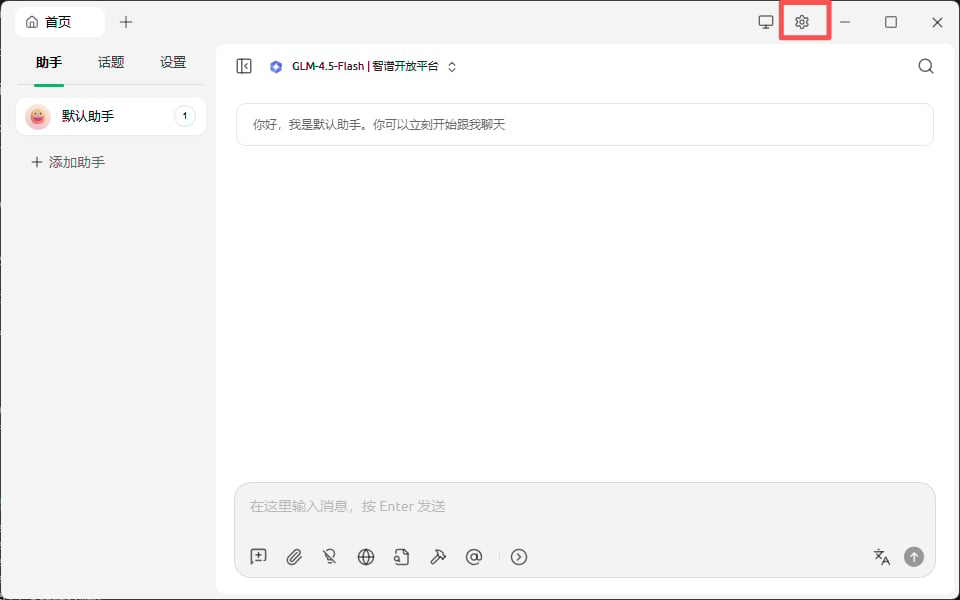
After launching Cherry Studio, navigate to the settings page:- Click the ⚙️ Settings icon (gear icon) in the top right corner
- Or use keyboard shortcuts:
- Windows/Linux:
Ctrl + , - macOS:
Cmd + ,
- Windows/Linux:
Step 2: Add OneAster Model Platform
2.1 Access Model Service Management
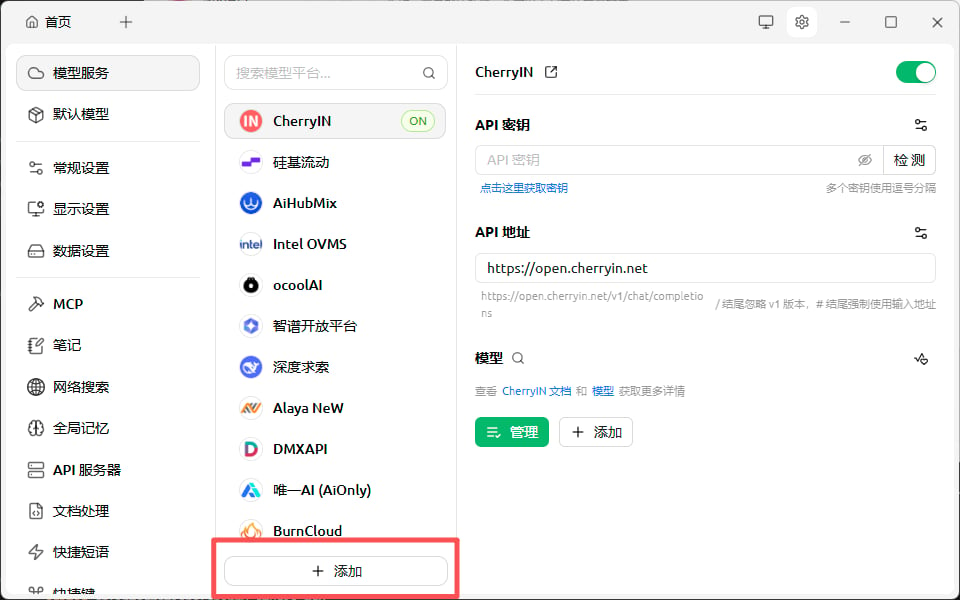
In the settings page:- Find the Model Service option in the left menu
- Click to enter model service management page
2.2 Add OneAster Provider
- At the bottom of the model service page, click the ”+ Add” button
Click + Add. In the Add Provider dialog, enter oneaster as the name, select OpenAI as the provider type, and confirm.
-
In the “Add Provider” dialog, fill in:
- Provider Name:
oneaster(customizable) - Provider Type: Select
OpenAI
- Provider Name:
- Click the “Confirm” button
2.3 Configure OneAster API Information
After adding the provider, fill in the API information in the right configuration area:- API URL must be
https://api.oneaster.ai(do not include/v1or other paths) - API Key must be obtained from OneAster console and start with
sk- - After filling in, you can click the “Test” button to test the connection
Select OneAster in Model Services. Enter your API key and set the API address to https://api.oneaster.ai. Enable the provider and click Check to test the connection.
Step 3: Add and Manage Models
3.1 Open Model Management
After configuring the OneAster provider:- Ensure the OneAster provider switch in the top right is ON (green)
- In the right configuration area, find the “Models” section
- Click the “Manage” button to open the model selection window
Select the enabled OneAster provider. In the Models section on the right, click Manage to open the list of available models.
3.2 Add Desired Models
In the model selection window:- Use the search box to find specific models
- Use the category tabs at the top to filter: All, Reasoning, Vision, Web, Free, Embedding, Rerank, Tool
- Find the models you want and click the + button on the right to add:
gpt-4o/chatgpt-4o- OpenAI GPT-4o modelgpt-4o-mini- Faster and more economical versionclaude-3series - Claude 3 models (with multiple variants)claude_code_sonnet-4- Claude Code Sonnet 4claude_code_haiku-4- Claude Code Haiku 4gemini-2.0-flash-exp- Google Gemini 2.0 Flash
In model management, search for a model and click + beside it. Confirm that it appears in the added models list, then close the window.
- After adding all desired models, close the model selection window
Step 4: Start Chatting
After configuration, you can start using it:- Return to the main interface, click the ”+” at the top or select an existing chat
- At the top of the chat page, click the model selector
- Select a model under the OneAster provider
- Start chatting with AI!
Create a conversation from the main screen. Open the model selector at the top, choose OneAster, and select the model you added.
Check that the selected OneAster model appears at the top of the conversation. Enter a question, send it, and read the response in the message area.
FAQ
Q1: Cannot connect to OneAster service?
Solution:-
Check Base URL:
- Ensure Base URL is
https://api.oneaster.ai - Do not add
/v1suffix
- Ensure Base URL is
-
Verify API Key:
- Confirm API Key is correct and starts with
sk- - Check if the key is valid in OneAster Console
- Confirm API Key is correct and starts with
-
Check Network Connection:
- Ensure you can access
https://api.oneaster.ai - You may need to configure a proxy if in China
- Ensure you can access
Q2: Model list is empty or cannot refresh?
Solution:-
Manually Add Models:
- If auto-refresh fails, you can manually add common models
- In model management, manually enter model names (e.g.,
gpt-4o)
-
Check API Permissions:
- Confirm your API Key has permission to access the model list
- Contact OneAster support to check account status
Q3: Error messages during conversation?
Common errors and solutions:Q4: How to view API usage and costs?
Log in to OneAster Console to view:- 📊 API call statistics
- 💰 Cost details
- 📈 Usage trend charts
Features
Using Cherry Studio + OneAster, you can:- 💬 Multi-model Conversations - Use different AI models in the same interface
- 🖼️ Image Understanding - Multi-modal conversations with image input support
- 📝 Context Management - Intelligent management of conversation history and context
- 🎨 Custom Prompts - Create and manage prompt templates
- 📊 Export Conversations - Export conversation records to Markdown and other formats
- 🔄 Model Comparison - Use multiple models simultaneously and compare outputs
Support & Help
If you encounter any issues:- 📚 OneAster Documentation
- 💬 Discord Community
- 🐦 Twitter @oneaster_
- 📧 Technical Support: [email protected]