Prerequisites
Before you begin, please ensure:-
Cursor is installed
Download and install the version suitable for your OS from the Cursor website -
You have an OneAster API key
Log in to the OneAster Console to get your API key (starts withsk-)
Tip: If you don’t have an OneAster account yet, register at OneAster and obtain an API key first.
Step 1: Open Cursor Settings
After launching Cursor, open Settings:- Click the ⚙️ Settings icon (gear) in the top-right corner
- Or use shortcuts:
- Windows/Linux:
Ctrl+Shift+J - macOS:
Cmd+Shift+J
- Windows/Linux:
Open Cursor settings using the gear icon at the top right, or press Ctrl+Shift+J on Windows/Linux or Cmd+Shift+J on macOS.
Step 2: Configure model settings
2.1 Open model settings
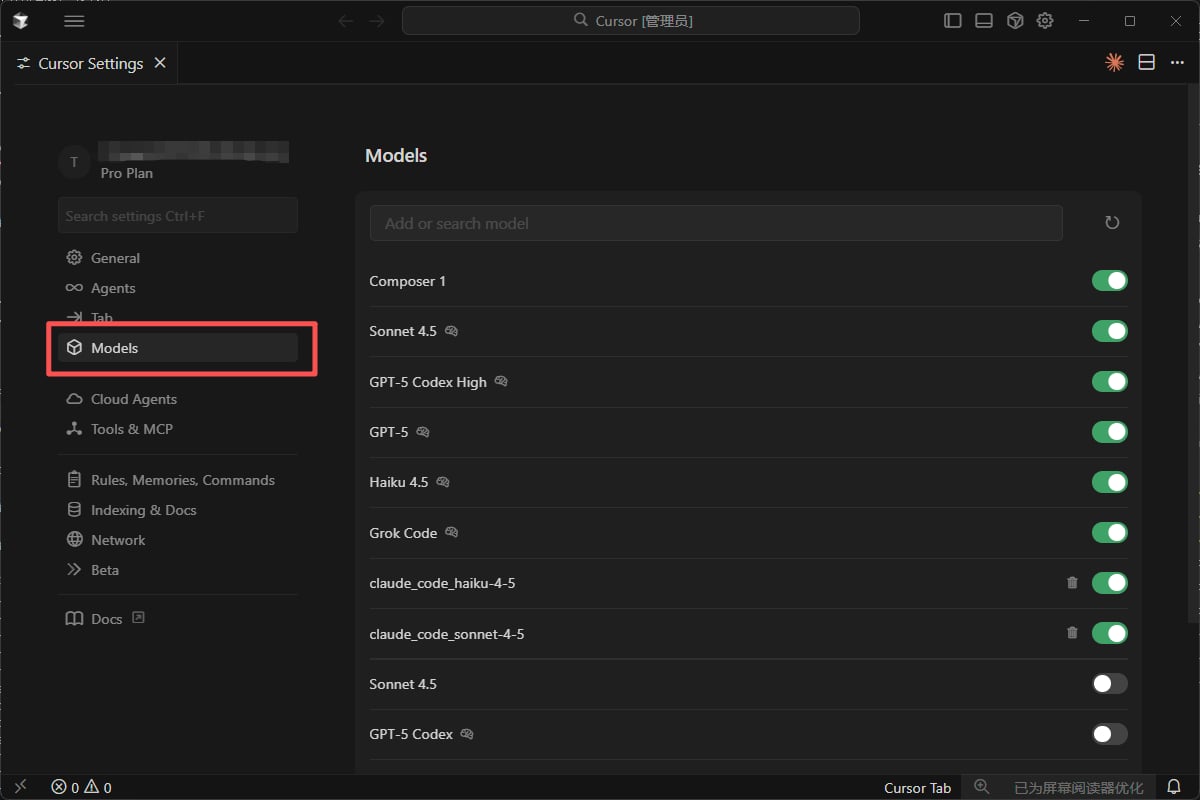
In Settings:- Find Models in the left sidebar
- Open the model settings page
2.2 Use OpenAI API Key
On the model settings page:- Find the OpenAI API Key section
- Click Add new or Override OpenAI Base URL
Important: Cursor supports OpenAI-compatible APIs, so OneAster can be configured as a custom provider.
2.3 Configure OneAster
Enter the following:Important: - Base URL must include the
/v1 suffix: https://api.oneaster.ai/v1 - The API key must be the sk-... key from the OneAster console - After saving, Cursor uses OneAster models for completion and chatIn Cursor model settings, enter your OneAster API Key and set Base URL to https://api.oneaster.ai/v1. Check and save the configuration.
Step 3: Choose models
3.1 Model selection
Enable the required model in Cursor model settings. If adding a model manually, enter a model ID available through OneAster, then select it in the chat panel.
-
GPT-4/5 — strong for complex code generation and Q&A
gpt-5— latest GPT-5gpt-4o— GPT-4ogpt-4o-mini— faster, lower cost
-
Claude — strong for understanding and refactoring
claude-sonnet-4-5-20250929— Claude Sonnet 4.5claude-haiku-4-5-20251001— Claude Haiku 4.5
-
Other
gemini-2.0-flash-exp— Google Gemini 2.0 Flash
3.2 Per-feature models
You can pick different models per feature:- Chat — conversations with the AI
- Autocomplete — inline suggestions
- Cmd+K — quick edit / generate
Step 4: Start using
Once configured, you can use Cursor’s AI features.4.1 AI Chat (Cmd+L / Ctrl+L)
- Press
Cmd+L(macOS) orCtrl+L(Windows/Linux) - Ask a question or give a task, for example:
- “How do I implement quicksort?”
- “Help me optimize this code’s performance”
- “Explain how this function works”
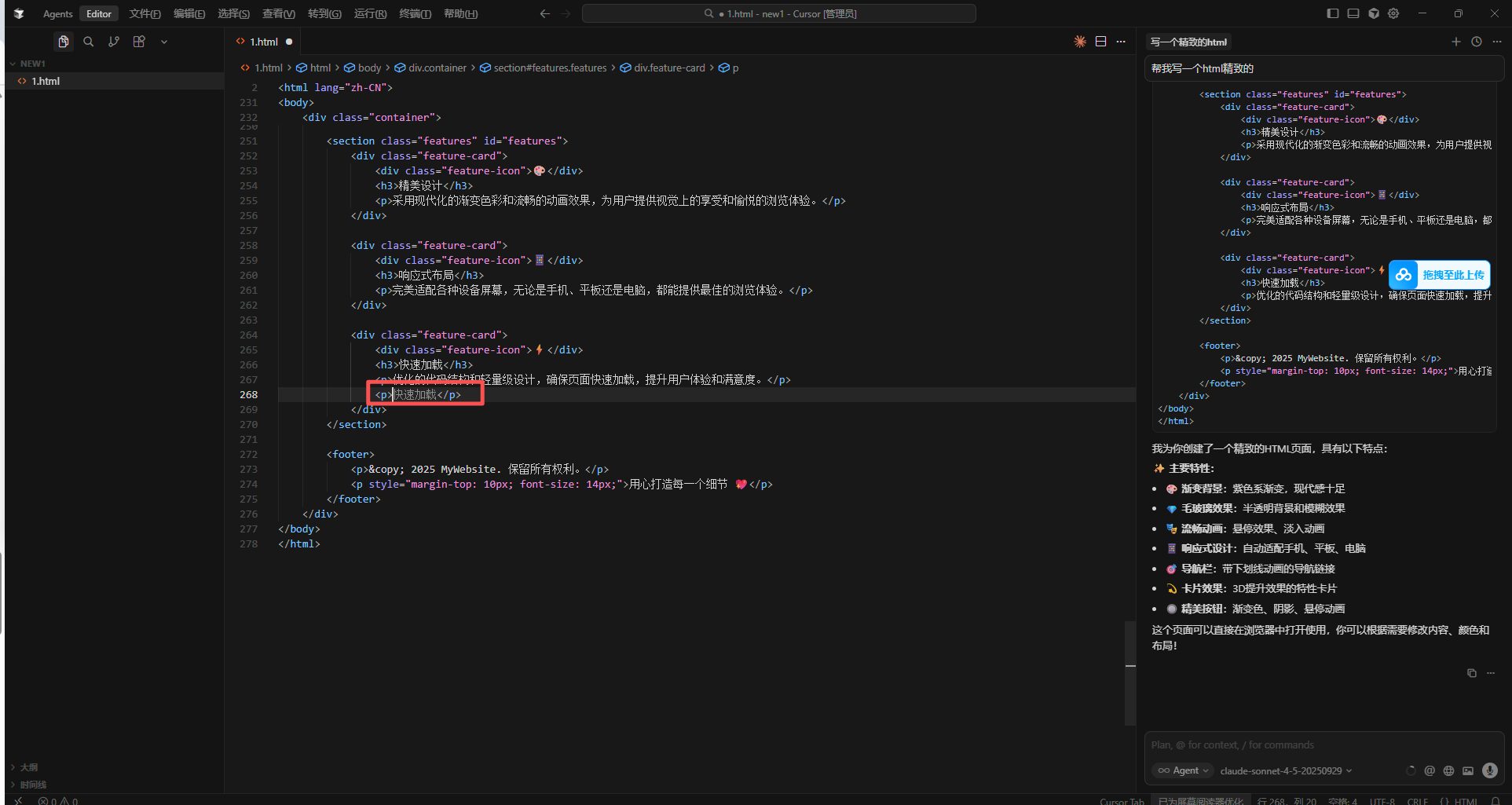
Press Cmd+L on macOS or Ctrl+L on Windows/Linux to open AI chat. Select the configured model, enter a question or coding request, and read the response in the panel.
4.2 Code completion
- Type as usual in the editor
- Cursor suggests completions
- Press
Tabto accept
4.3 Quick edit (Cmd+K / Ctrl+K)
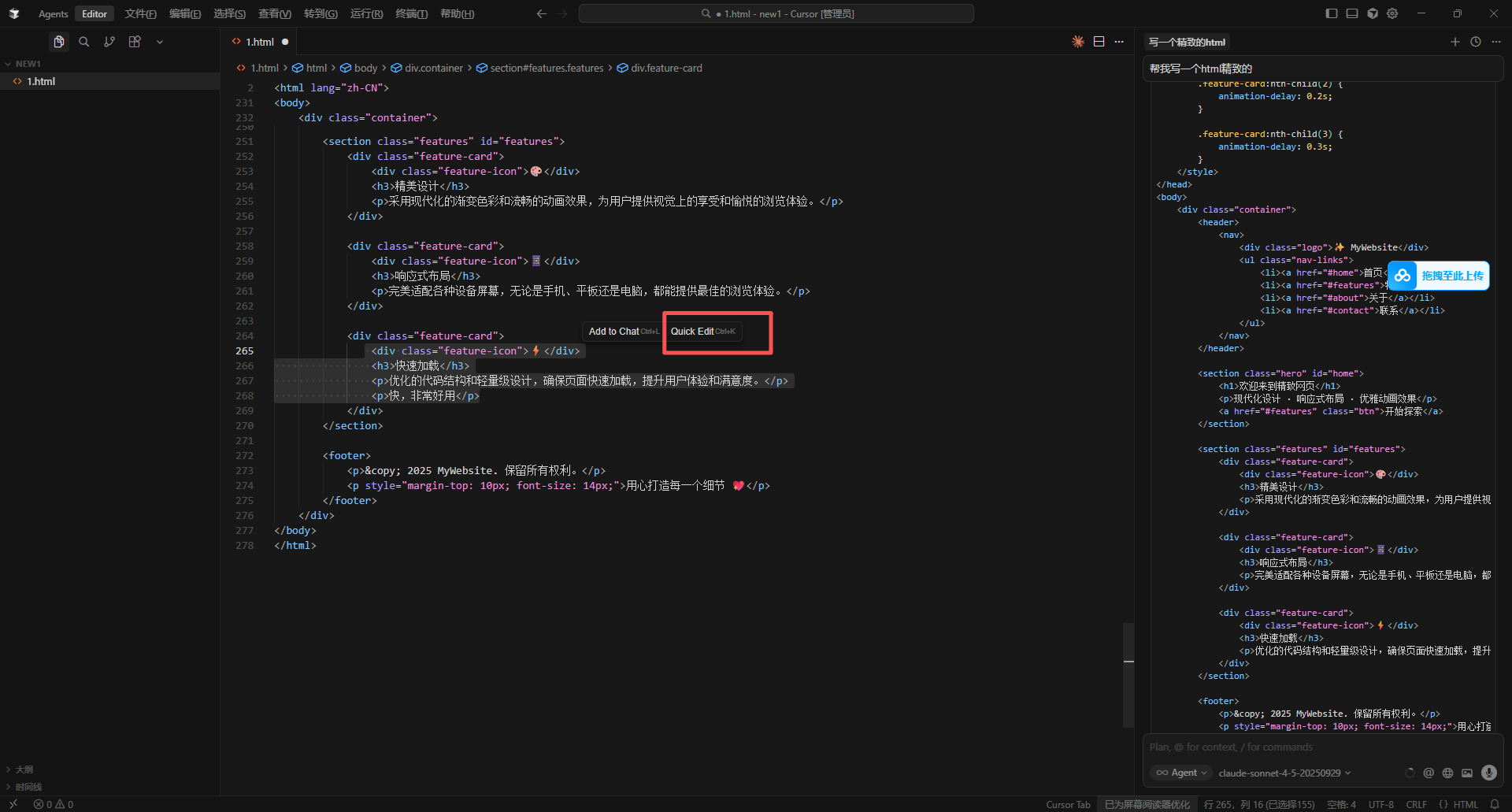
- Select code
- Press
Cmd+K(macOS) orCtrl+K(Windows/Linux) - Describe the edit, e.g.:
- “Add error handling”
- “Refactor this function”
- “Add type annotations”
4.4 Explain code
- Select the code
- Right-click Explain with AI (or shortcut)
- The AI explains behavior and logic
FAQ
Q1: Can’t reach OneAster?
Try:- Base URL — must be exactly
https://api.oneaster.ai/v1 - API key — valid
sk-...key from the console - Network — ensure
https://api.oneaster.aiis reachable; a proxy may be required in some regions
Q2: Slow responses?
Try:- Use a lighter model (
gpt-4o-miniinstead ofgpt-4o, orgemini-2.0-flash-exp) - Shorten context — send less code, ask more precise questions
- Check latency / proxy if needed
Q3: API errors?
Q4: Usage and billing?
Open the OneAster Console:- 📊 Call statistics
- 💰 Cost breakdown
- 📈 Usage trends
- 🔍 Request logs
Tips
1. Use context
- Open related files
- Reference files with
@filename - Reference folders with
@folder
2. Clear prompts
❌ Weak:3. Iterate
Start small → refine → test → adjust prompts.4. Project rules
Define style, naming, architecture, and tests in.cursorrules.
Features
With Cursor + OneAster:- 💬 Chat for coding questions
- ⚡ Smart completion
- ✏️ Natural-language edits
- 🔍 Deeper code understanding
- 🐛 Debugging help
- 📝 Docs and comments
- 🔄 Refactoring
- 🧪 Test scaffolding
Support
Get started with OneAster
Sign up, get your API key, and ship faster with Cursor!